You can provide instant support to your visitors when you decide to how to add an ai chatbot to a business website by connecting a messaging platform to your existing site code. This process involves picking a provider, generating a small snippet of script, and pasting it into the header or footer of your site’s HTML files.
The setup time and technical difficulty vary based on your current site platform. If you use a content management system like WordPress, you’ll typically finish in minutes using a plugin, whereas a custom-coded site requires manual script insertion.
Launching a site chatbot for your business
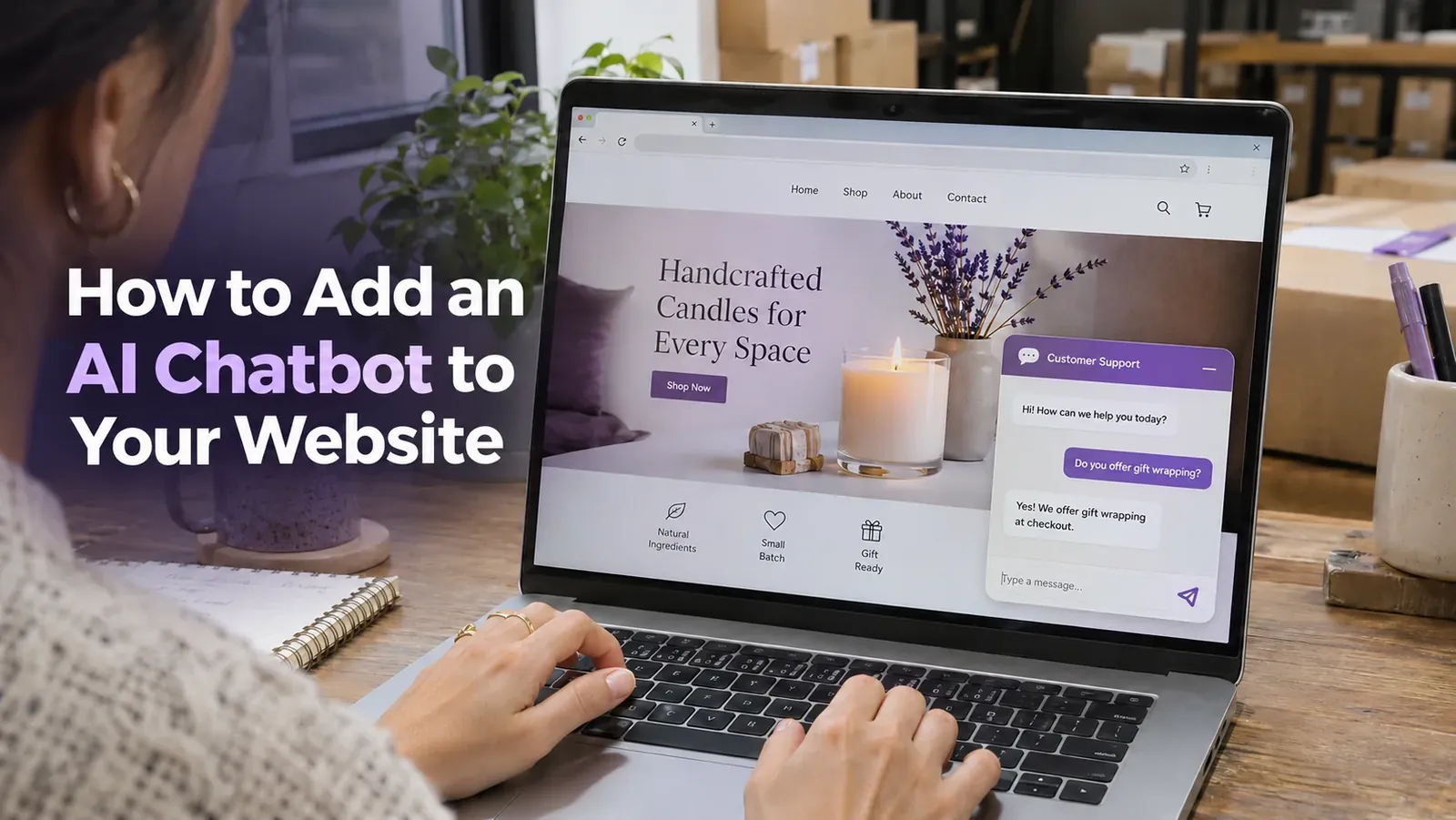
If you want to get a chatbot running on your company site, the first step is choosing a platform that fits your technical skill level. Most businesses start by signing up for a service like Tidio, Intercom, or Drift, which provide a dashboard to manage your conversations and design the bot’s greeting.
Once you create your account, the platform generates a unique JavaScript code snippet. This code is the bridge between your website and the bot’s brain, allowing it to “see” your pages and talk to your users.
You must decide whether you want a pre-built bot that handles simple questions or a custom-built one that integrates with your database. If you choose a pre-built option, you simply copy the code provided in the dashboard and paste it into your site’s <head> tag.
After you save your changes and refresh the page, the chat bubble will appear. If you aren’t comfortable editing site code, you should ask your developer for help to ensure the script doesn’t slow down your page load times.
Factors that influence your chat success
The quality of your bot’s performance depends on how you configure its initial logic. Most beginners make the mistake of trying to automate everything at once, which often leads to frustrated customers who can’t find the answers they need.
- Platform integration: Some builders offer native plugins for WordPress or Shopify, while others require manual code injection. Check your site’s CMS marketplace first to see if a one-click integration exists.
- Response accuracy: A bot is only as good as its training data. If your business has a frequently asked questions page, use those exact answers to build your bot’s knowledge base.
- Human hand-off: Always set a rule that triggers a notification to your team if the bot fails to answer a question after two attempts.
- Load speed: Large chat scripts can make your site feel sluggish. Always test your site’s speed after adding the bot, as a slow site will drive customers away faster than a missing chat icon.
Steps to add a chatbot to your business website
- Choose a chatbot service provider that supports your specific site platform.
- Sign up for an account and configure your bot’s welcome message and basic tone.
- Locate the “Installation” or “Integration” section in your new provider’s dashboard.
- Copy the unique JavaScript code snippet provided by the service.
- Open your website’s admin panel or your site’s source code files.
- Paste the snippet into the
<head>or<footer>section of your site-wide template. - Save your changes and clear your website cache to see the new chat icon.
- Test the bot on both desktop and mobile browsers to ensure it doesn’t overlap with other buttons.
The final judgment call is in the greeting. A bot that says “How can I help you today?” Is fine, but one that mentions a specific service or offer converts far more visitors. Ensure your greeting matches the context of the page it appears on, rather than using one generic message for the entire site. If you don’t have a web developer on staff, don’t attempt to modify core theme files yourself, as you risk breaking your site’s layout.
Chatbot features at a glance
| Situation | Action | Effort | Watch for |
|---|---|---|---|
| WordPress site | Install plugin | Low | Plugin updates |
| Custom HTML site | Paste script | Medium | Code placement |
| Large e-commerce | API integration | High | Sync errors |
| Simple blog | Basic widget | Very low | Load speed |
When you choose a WordPress plugin, you’re leveraging a pre-built bridge between your database and the chat provider. This minimizes manual coding, but it demands vigilance. Every time your site theme updates, check the plugin compatibility. An outdated plugin often creates a conflict that breaks your site’s layout or suppresses the chat bubble entirely.
For custom HTML sites, pasting a script directly into the header or footer gives you granular control over where the bot appears. Place the script just before the closing body tag to prevent the chat window from delaying your site’s primary content rendering. If the bot loads too early, it can block users from clicking essential navigation elements while the page is still painting.
Large e-commerce platforms require API integration to pull live data like order status or inventory levels. This high-effort path is necessary for personalized support. You must monitor sync errors closely, as a mismatch between your inventory database and the chatbot’s knowledge base leads to customer frustration. Ensure your API keys are rotated regularly to maintain a secure handshake between your store and the bot.
A simple blog benefits from a basic widget that prioritizes performance. Because blogs rely on fast load times for search engine visibility, choose a lightweight script that loads asynchronously. If the chatbot script is too heavy, it will trigger a drop in your Core Web Vitals scores. Test the widget on a mobile connection to ensure it doesn’t consume excessive data or drain the reader’s battery.
Always prioritize the user experience over the number of features you enable. A bot that tries to do everything often does nothing well. Start with a single, high-impact function, such as answering common shipping questions, before expanding into complex workflows. This phased approach keeps your site fast and your maintenance burden manageable.
Preparing for a smooth deployment
Testing your bot logic
Before you go live, test every possible path a user might take. Create a list of the ten most common questions your business receives and ensure the bot provides a clear, helpful answer for each. If the bot gives a wrong answer, refine the keyword triggers in your dashboard immediately. Experienced users prioritize accuracy over personality, so keep the bot’s language professional and direct.
Avoiding common design traps
Beginners often place the chat bubble in a spot that hides other important buttons, like “Add to Cart” or “Contact Us.” Check your site on different screen sizes, including tablets and smaller phones, to ensure the bubble is visible but not intrusive. Never set the bot to pop up automatically on every page, as this can annoy visitors and cause them to leave your site immediately.
Troubleshooting your chat widget
| What you notice | What it means | What to do first | How to stop it |
|---|---|---|---|
| Icon not showing | Script error | Check code placement | Verify tag location |
| Slow page load | Heavy script | Use lazy loading | Optimize widget settings |
| Bot ignores users | Wrong triggers | Review logic map | Update keyword list |
| Overlapping buttons | Z-index issue | Adjust CSS file | Use provided alignment |
Rules for professional chat interactions
When you add a bot, you must follow the data privacy laws relevant to your region, such as GDPR in Europe or CCPA in California. Most reputable bot providers include a privacy consent checkbox, but you’re responsible for ensuring it’s enabled if you collect user emails or phone numbers. Check your provider’s documentation for “compliance settings” to ensure you’re meeting these legal requirements.
If your business handles sensitive information, such as medical records or financial data, never allow the bot to collect that information in an open chat window. Always direct those users to a secure, encrypted contact form instead. If you’re unsure about your site’s compliance, check with your hosting provider or a legal professional to confirm your current setup meets local standards.
Managing the cost of automation
Automation tools usually charge based on the number of conversations or “monthly active users.” You can keep costs down by using the bot only for initial screening and routing complex queries to your email inbox. If you see your costs rising, audit your chat logs to see if the bot is stuck in a loop with users. You can often lower your bill by refining the bot’s “exit” triggers so it doesn’t count every minor interaction as a full conversation.
Beyond these technical adjustments, consider the impact of your bot’s placement. If your chat widget triggers automatically on every page load, you’re likely paying for “ghost” conversations where users close the window immediately. Move the trigger to a specific user action, such as scrolling halfway down a pricing page or clicking a “Help” button. This ensures you only pay for interactions with users who have a genuine intent to engage.
Another hidden cost driver is the breadth of your bot’s knowledge base. Many platforms charge premiums for bots that can access deep internal databases or integrate with third-party CRM software. If your bot is currently configured to answer every possible question, try narrowing its scope. Focus the automation on the three most common customer inquiries, such as order tracking or password resets. By offloading only these high-volume, low-complexity tasks, you maintain a predictable monthly spend.
When evaluating your subscription tier, look for “overage” clauses that kick in during seasonal traffic spikes. Some providers penalize you for exceeding your monthly conversation limit by charging a significantly higher per-message rate. If your business experiences predictable surges, such as during a holiday sale, upgrade your plan temporarily rather than paying these punitive fees.
Finally, treat your chatbot as a living asset rather than a static tool. If a specific conversation flow consistently fails to resolve a user’s issue, it creates a “dead-end” loop that drains your budget without providing value. Regularly prune these ineffective paths. By removing paths that lead to nowhere, you prevent the bot from wasting your monthly conversation credits on unproductive cycles, keeping your automation spend tightly aligned with actual customer outcomes.
Keeping your chat tool effective
A chatbot requires regular maintenance to stay useful as your business grows. Review your chat transcripts at least once a month to see what users are asking. If you notice a new trend in questions, update your bot’s knowledge base to include those answers. If the bot starts showing outdated information, it’s time to manually audit the content and remove any expired offers or services.
Beyond simple updates, look for “dead ends” where users frequently abandon the conversation. These friction points often occur when the bot fails to understand a specific phrasing or lacks a clear path to a human agent. By identifying these gaps, you can refine the decision tree to provide more helpful prompts or smoother handoffs.
You should also monitor how the bot handles seasonal shifts in your business. If you run periodic promotions or change your service hours, the bot must reflect these changes immediately. A bot that promises a discount code that expired last week creates immediate frustration and erodes trust in your digital presence.
Consider the tone of your bot as your brand evolves. A bot that sounded professional during your startup phase might feel too stiff as your company culture shifts toward something more conversational. Periodically refreshing the bot’s language ensures it remains a consistent voice for your business rather than a static, robotic relic.
Finally, analyze the feedback loop. If your tool includes a thumbs-up or thumbs-down rating system, prioritize the low-rated interactions. These specific conversations act as a roadmap for your next round of training. By focusing on the interactions that frustrated your customers most, you ensure your maintenance efforts deliver the highest possible impact on user satisfaction.
Don’t treat your chatbot as a “set and forget” asset. Treat it like a living member of your customer service team that needs ongoing coaching to handle the complexities of your evolving customer base. Consistent, small adjustments prevent the need for a total system overhaul later.
Choosing the right communication strategy
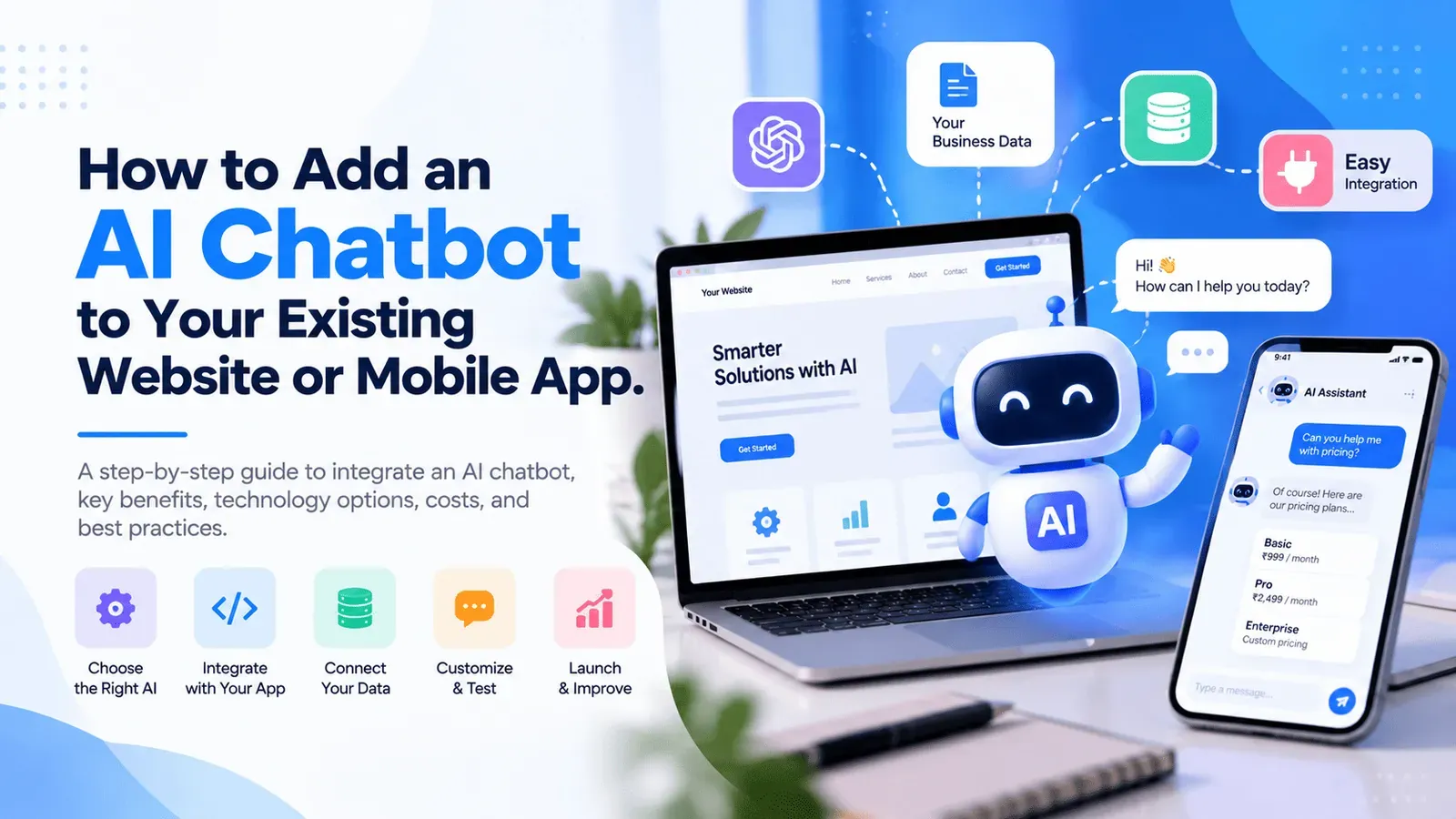
If you need a highly complex bot that integrates with your internal CRM or proprietary software, a simple plug-and-play widget might be the wrong choice. In that case, you should look for a headless chatbot solution that allows for custom API development. This approach requires more technical skill and a higher budget, but it ensures the bot can pull real-time data from your back-end systems.
Consider the depth of your customer inquiries before selecting an architecture. If your users frequently ask about order statuses, account balances, or specific inventory levels, a standard bot will fail to provide meaningful answers. It will only offer generic responses that frustrate your visitors. A headless solution bridges this gap by querying your database directly.
You must also weigh the trade-off between speed and control. Plug-and-play tools are excellent for immediate deployment, but they often restrict your ability to customize the conversation flow. When your brand relies on a specific tone or a unique sequence of data collection, these rigid templates become a bottleneck. Custom API development grants you full ownership over the user journey.
Think about your long-term data strategy as well. A bespoke integration allows you to feed chat logs directly into your analytics platform without manual exports. This creates a closed loop where every interaction informs your future business decisions. You gain insights into exactly where your customers struggle during the navigation process.
Finally, evaluate your internal engineering bandwidth. If your team lacks the capacity to maintain custom endpoints, the technical debt of a headless solution might outweigh the benefits. In such scenarios, look for a middle-ground provider that offers pre-built connectors for your specific CRM. This allows you to leverage powerful data synchronization without building the entire infrastructure from scratch. Always prioritize a solution that scales with your data requirements rather than one that simply fills a space on your homepage.
Getting started with your website chatbot
Start by selecting a provider that offers a free trial so you can test the interface before committing to a paid plan. This trial period is your chance to evaluate how the bot’s tone aligns with your brand identity. Does the default greeting sound like your team, or does it feel robotic and detached? Use this time to see if the customization tools are intuitive enough for your staff to manage daily.
Once you paste the code, verify the chat icon appears on your live site and test the response flow yourself. Click through every button and simulated conversation path. You’re looking for dead ends where the bot fails to provide a helpful link or a clear next step. If a user reaches a point where the bot simply says “I don’t understand,” your setup needs more training data or better fallback logic.
Consider how the widget behaves on different screen sizes. A chat window that covers the entire mobile screen can frustrate users trying to read your content. Ensure the widget remains unobtrusive while still being easy to tap. If the icon overlaps with your navigation menu or a critical call-to-action button, you’ll need to adjust the positioning settings within your provider’s dashboard.
If you encounter issues with the installation or need help configuring complex automated workflows, reach out to One Stop IT Solutions for professional support. They can assist when your site architecture creates conflicts with the chatbot script. Sometimes, specific security plugins or custom site themes block the widget from loading correctly. Professional technicians can identify these hidden barriers, ensuring your chat interface remains stable and responsive for every visitor.
Finally, monitor the initial load times of your pages after adding the script. A heavy chatbot file can slow down your site, which may hurt your search engine ranking. If the bot causes a noticeable delay, ask your provider about asynchronous loading options that prioritize your primary site content first.